
Hello, this is the Runyour AI team.
Are you using Runyour AI with a group? In environments where multiple people share GPU resources, such as labs, startups, or team projects, having everyone top up and settle individually is bound to be a hassle.
To address this, Runyour AI offers a 'Team' feature that consolidates resource usage and billing at the team level. If you haven't tried it yet, this post will walk you through what the Team feature is and how to use it.
The Team feature is an environment designed to centrally manage the usage, payment, and settlement of GPU and storage resources at the team (organization) level.
Instead of each member renting resources and paying individually, you can share resources within a single team and manage costs from one place. You can see at a glance who is renting resources and what the monthly usage is for the entire team, significantly reducing administrative overhead in collaborative environments.
| Team creation is available only to users approved by an administrator.
Team features operate in a five-step workflow. We have organized it step-by-step so that even first-time users can quickly understand the entire process.
① Create a team
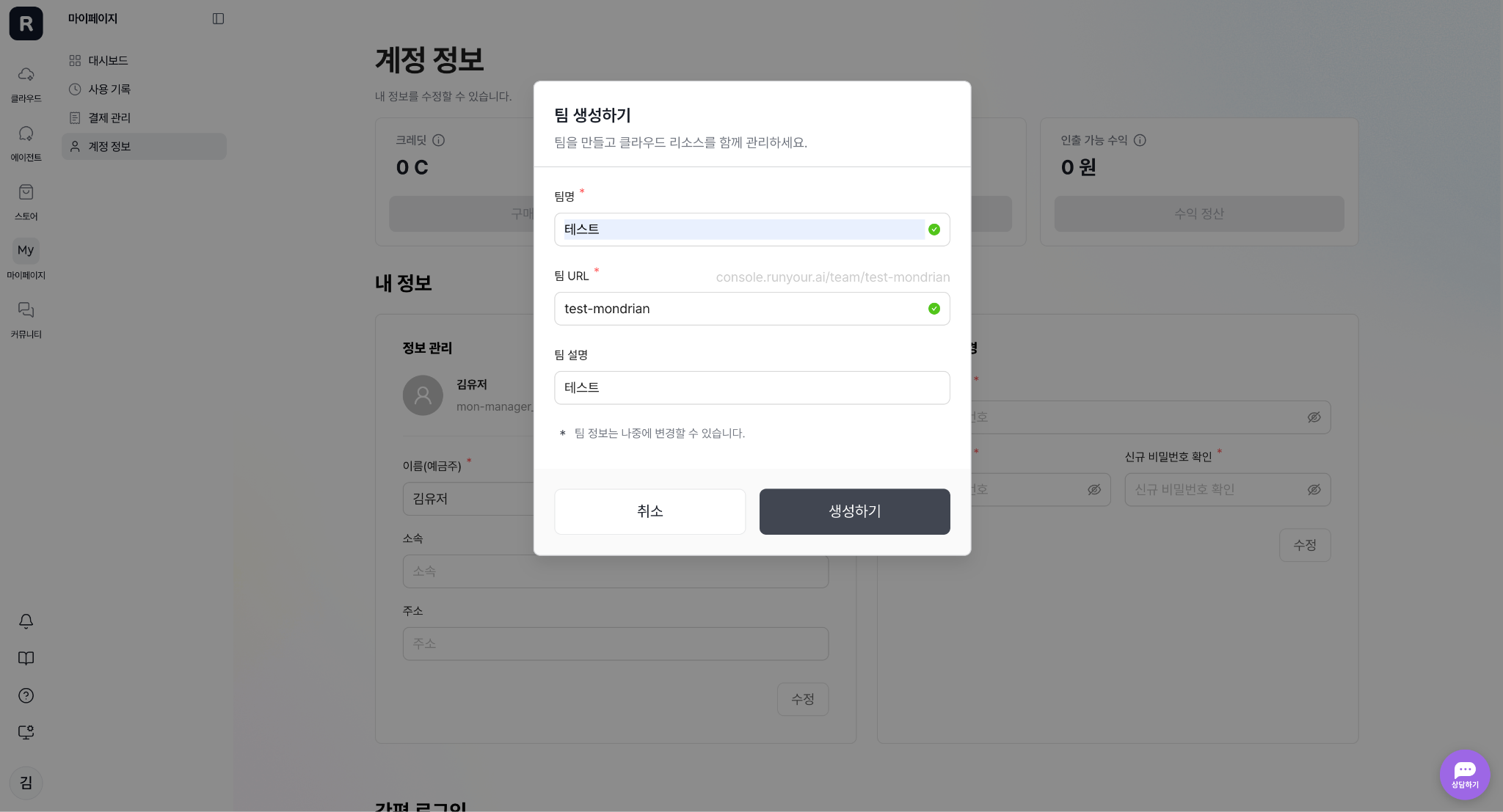
Click [Profile] at the bottom of the left menu and select [Create Team] to enter your information and click [Create] to finish setting up your team. You can freely switch between your personal workspace and team workspace from your profile.
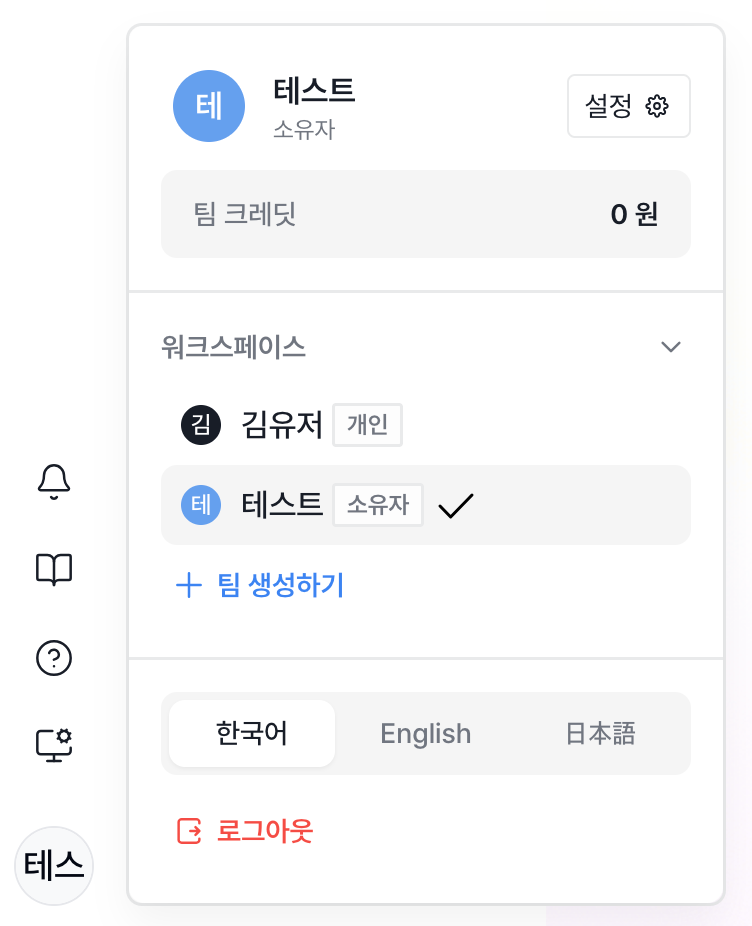
② Invite members and manage roles
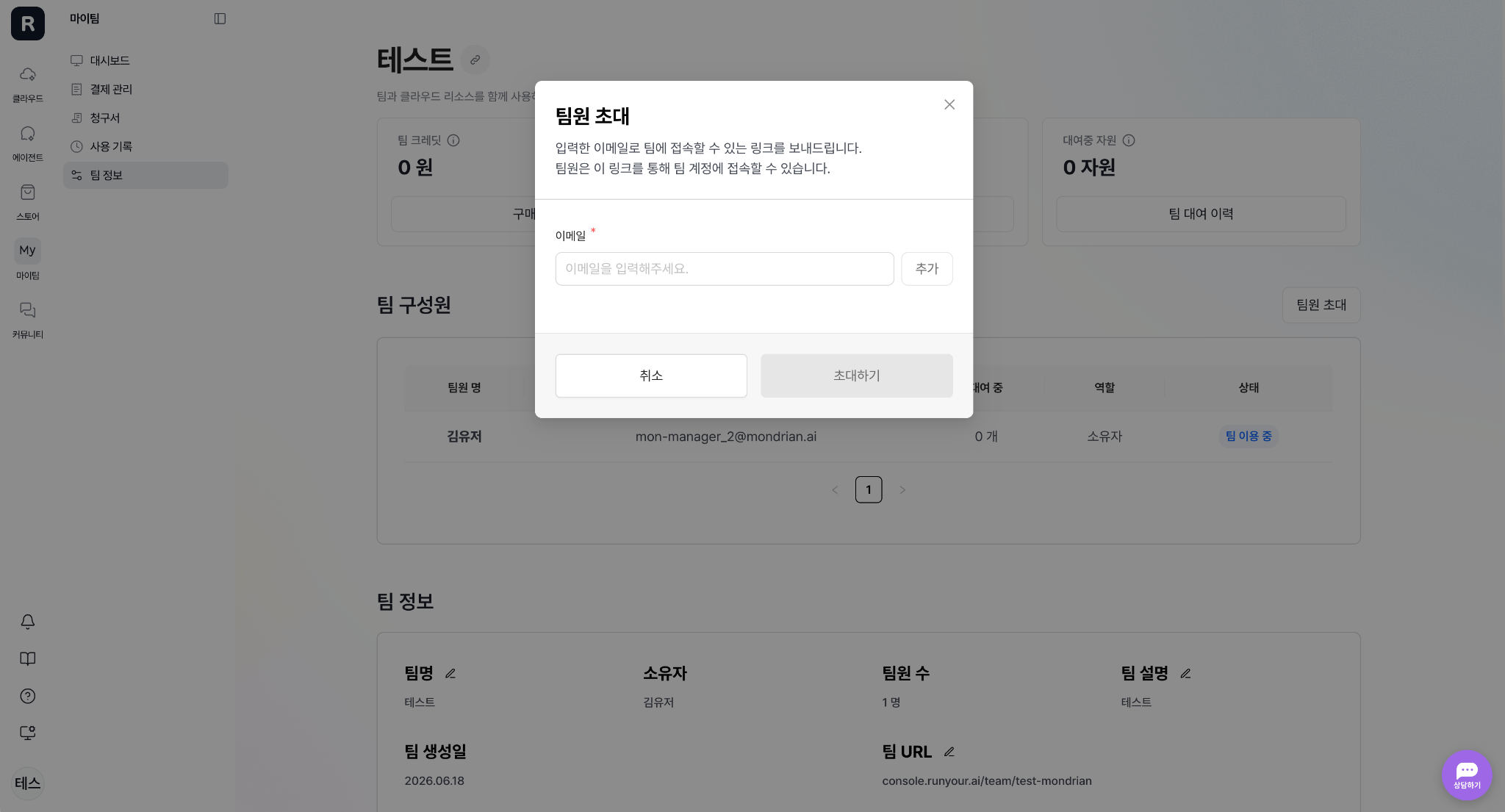
Once the owner or manager has switched to the team workspace, they can invite team members by clicking [My Team] - [Team Info] in the left menu and then selecting [Invite Team Members] on the right. Once the invited user accepts the invitation sent via email, they will immediately be switched to 'Team Active' status.

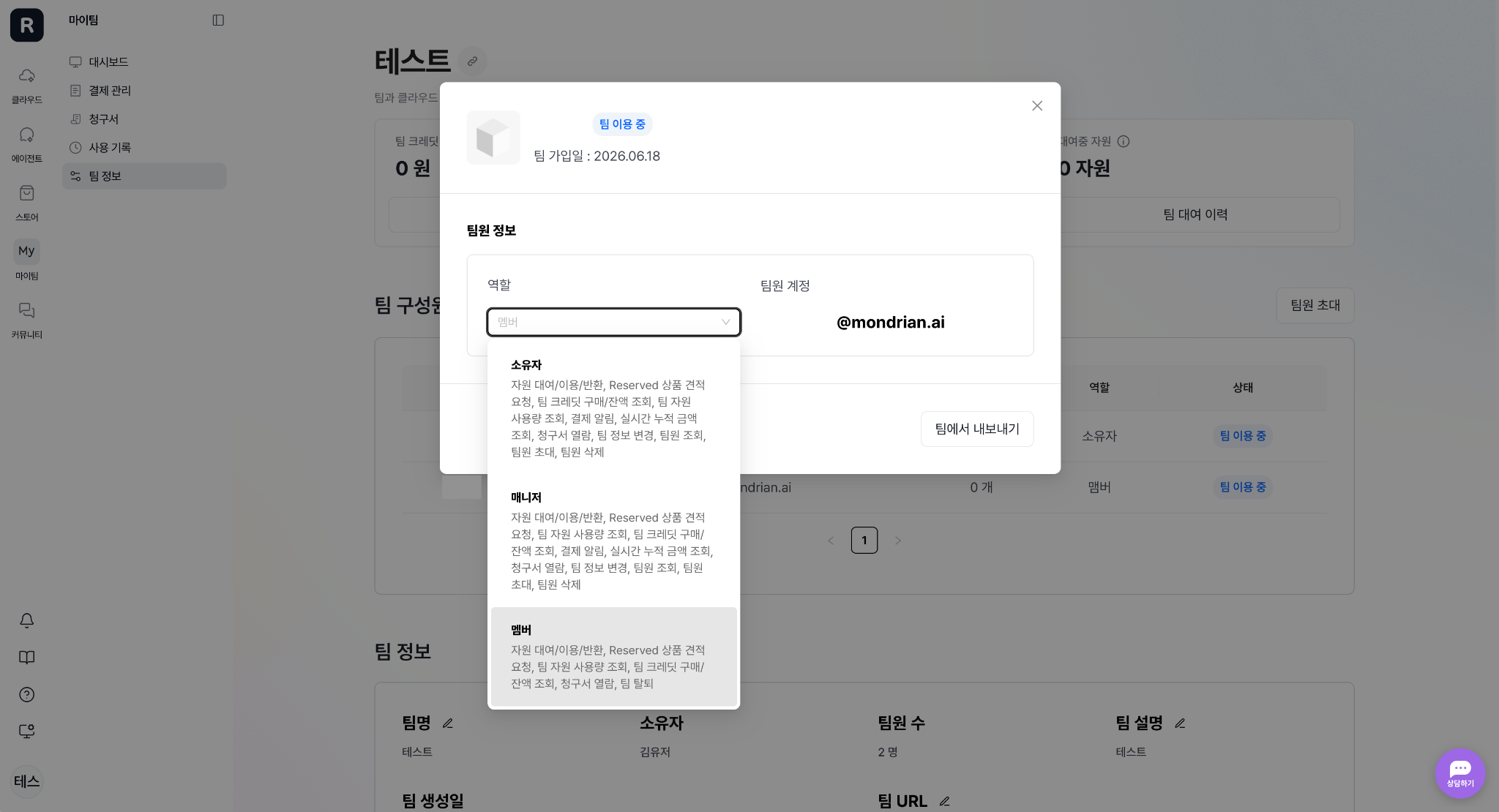
The team owner can assign each member a role: Owner (transfer ownership), Manager, or Member.
③ Top up team credits
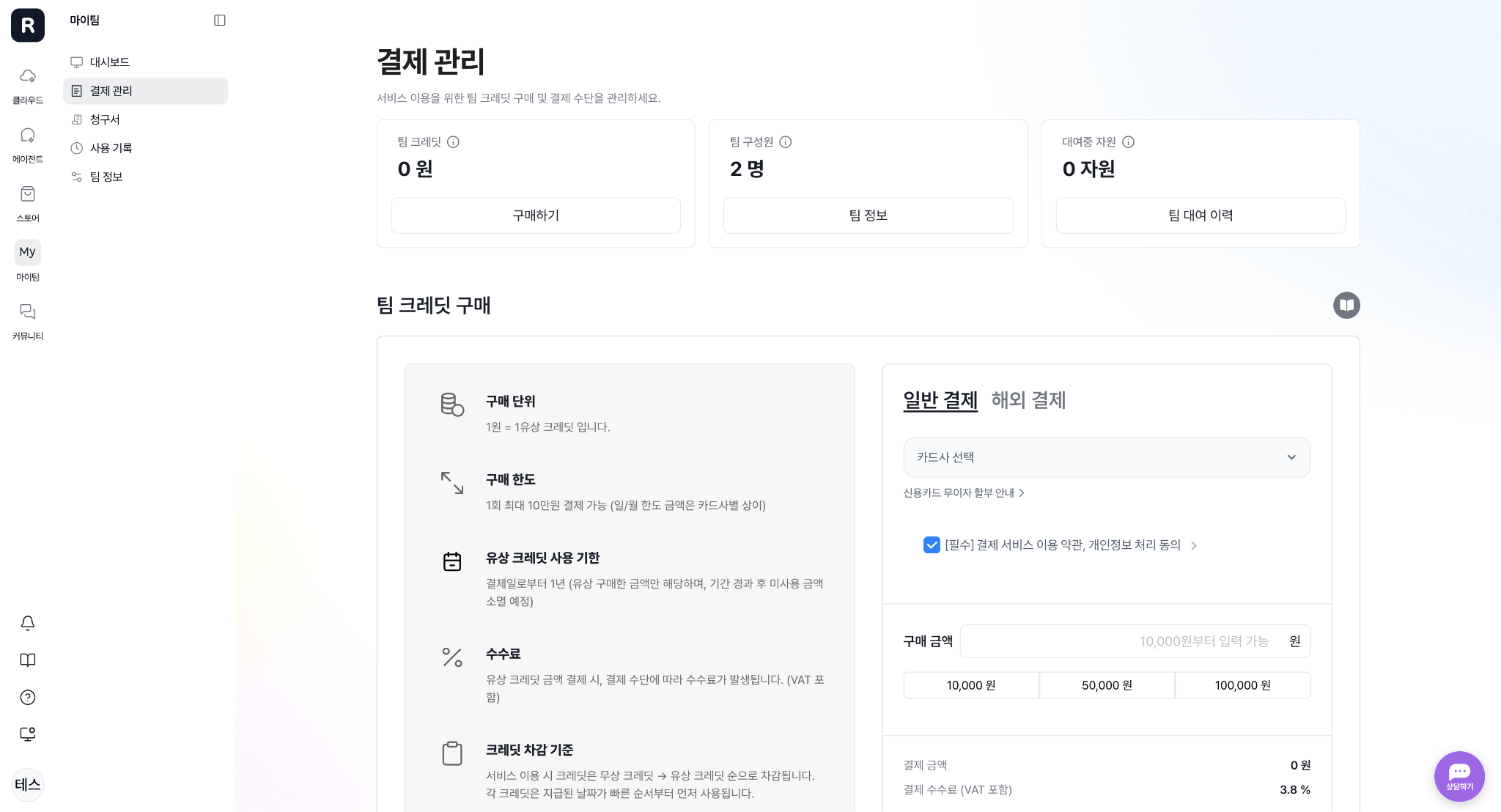
Top-up team credits to pay for GPU and storage usage at the team level. To ensure payment responsibility isn't concentrated on a single individual, all members can freely top up credits.
④ Resource sharing and usage
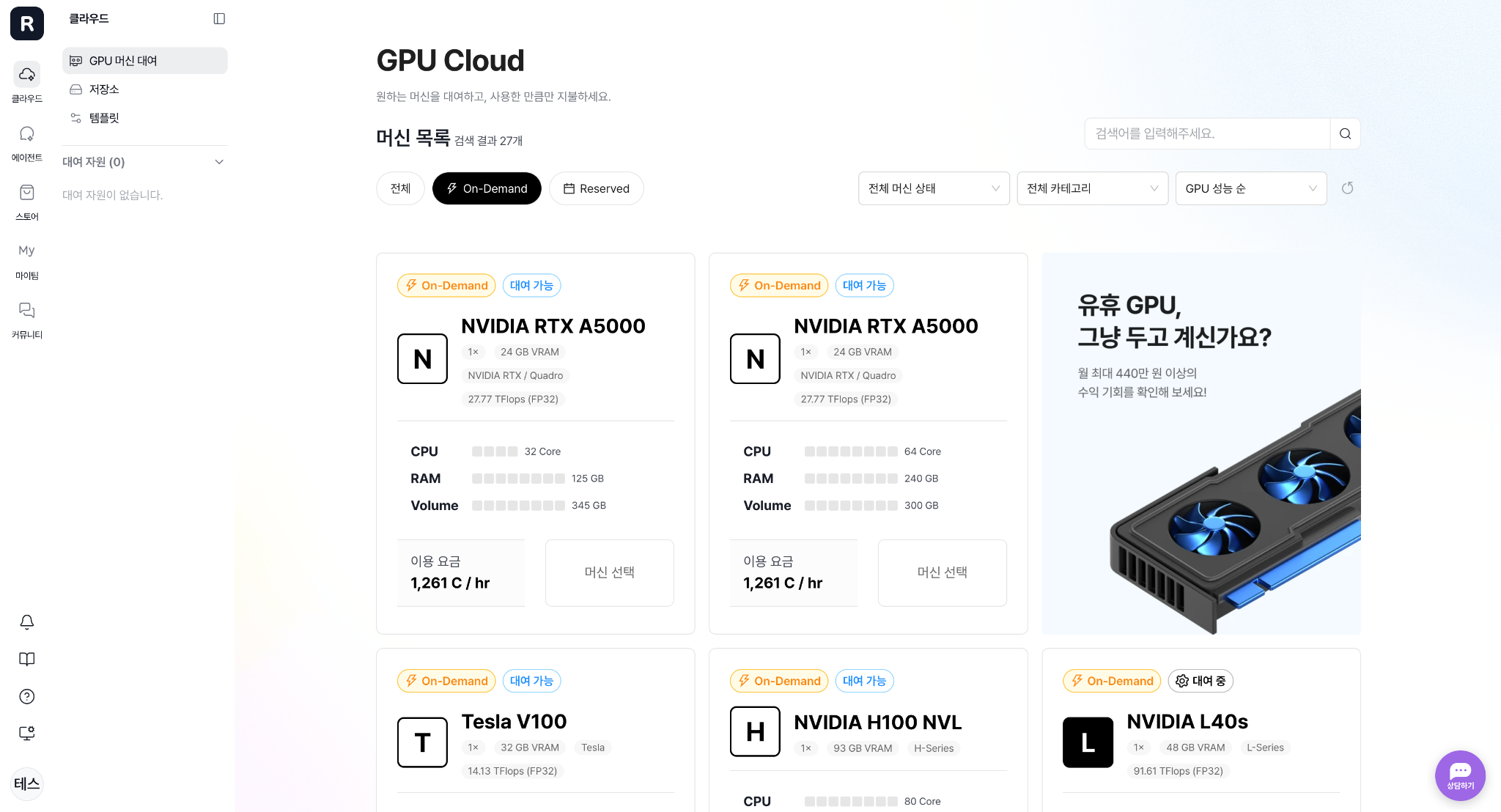
Any member can use On-demand, Reserved, and storage resources. Since resources are registered as team-owned rather than individual-owned, it doesn't matter if the person who borrows a resource is different from the one who returns it. This structure allows resources to be naturally passed between members during collaboration.
⑤ Billing and payment (monthly postpaid settlement)
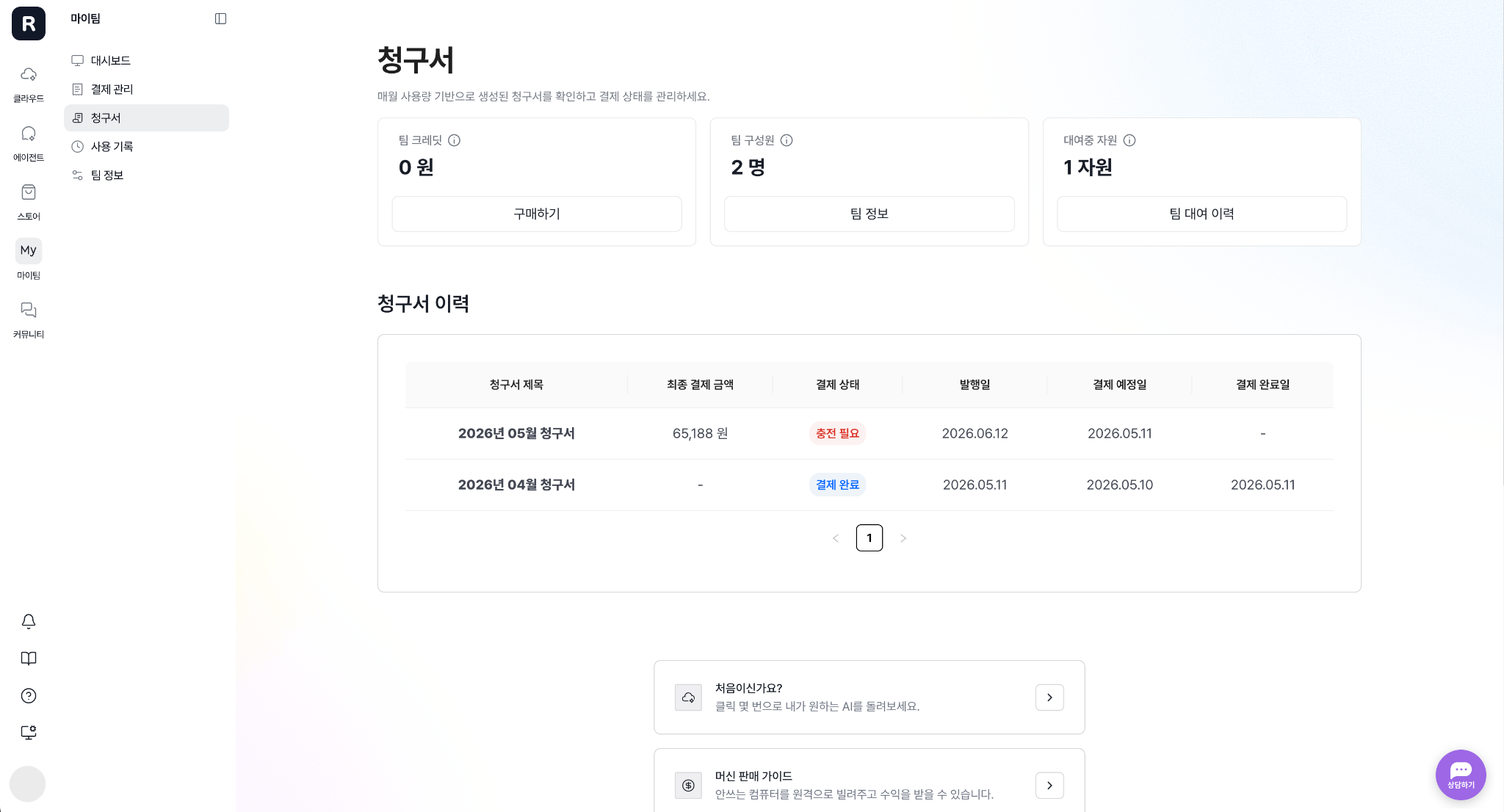
Runyour AI team billing operates on a monthly postpaid basis. Your GPU and storage usage for each month is automatically generated into an invoice at the beginning of the following month, and the amount is deducted from your pre-loaded team credits. Everything is handled cleanly based on your usage, with no manual settlement required.
If you're using Runyour AI with your team, try using our team features! 🚀
Here is how team features will transform the way you use Runyour AI:
✅ Individual resource management → Unified team and organizational management
✅ Separate top-ups and payments → Centralized top-ups and settlement
✅ Fragmented resource ownership → Shared team resources
Move beyond individual tools to a collaborative environment where multiple people operate resources together.
Experience it now with Runyour AI's team features.



![[Runyour Cloud October Update] Efficient resource utilization with integrated MIG technology for GPU partitioning](https://cdn.prod.website-files.com/659faaa08c491caeb4e3f8a3/6ae7f5f5d3a8fbe029cfc8a5_%EC%A0%95%EC%82%AC%EA%B0%81_261026_%ED%81%B4%EB%9D%BC%EC%9A%B0%EB%93%9C%2010%EC%9B%94%20%EB%A6%B4%EB%A6%AC%EC%A6%88%202.png)
![[Runyour Cloud October Update] Monitor your organization's GPU usage at a glance with operational reports](https://cdn.prod.website-files.com/659faaa08c491caeb4e3f8a3/6ae7f5dcdd229cd3f4a5a094_%EC%A0%95%EC%82%AC%EA%B0%81_261026_%ED%81%B4%EB%9D%BC%EC%9A%B0%EB%93%9C%2010%EC%9B%94%20%EB%A6%B4%EB%A6%AC%EC%A6%88%201.png)
![[Runyour Agent October Update] Block sensitive information in advance and align AI models with organizational policies](https://cdn.prod.website-files.com/659faaa08c491caeb4e3f8a3/6ae7f554d5d7d3e0a4595c35_%EC%A0%95%EC%82%AC%EA%B0%81_261026_%EC%97%90%EC%9D%B4%EC%A0%84%ED%8A%B8%2010%EC%9B%94%20%EB%A6%B4%EB%A6%AC%EC%A6%88%202.png)